Importing and Exporting Charts
Bring a client list into ELA Map from a spreadsheet or an AAF file, answer the few questions an import raises, and take your charts out again at any time.
Importing and Exporting Charts
If you already keep your clients' birth details somewhere, you don't need to type them in again. Import a file once, and each person becomes a chart. Exporting works the other way, and it is free on every plan, because your charts are yours to take with you.
[!NOTE] Import is part of Practice, on Pro, and is rolling out to Pro accounts now. If you don't see Import charts under Clients in Practice yet, it's on its way. Export is on every plan.
What you can import
- A spreadsheet saved as CSV. From Excel, Numbers or Google Sheets. It needs a name, a birth date, and a place or coordinates. A birth time and a Rodden rating are welcome too. Columns can be in any order, and if we can't tell which is which, we ask.
- An AAF file. The chart file format used by astro.com.
Not sure how to lay out a spreadsheet? The import sheet has a sample you can download. We can't read files from other astrology programs yet.
Bring your clients in
- Open Practice, go to Clients and choose Import charts.
- Choose your file. It is read on your device, and only the charts themselves are sent to us.
- If a date like 03/04/1971 could be read two ways, tell us whether the day or the month comes first.
- Leave Mark these as clients on, unless they aren't, and start the import.
You can close the page while it runs. It adds about 75 charts a minute, and you get a note in your inbox when it's done. You can import up to 5,000 charts a day. For a bigger list, import the same file again the next day: anything already added is skipped.
The questions an import asks
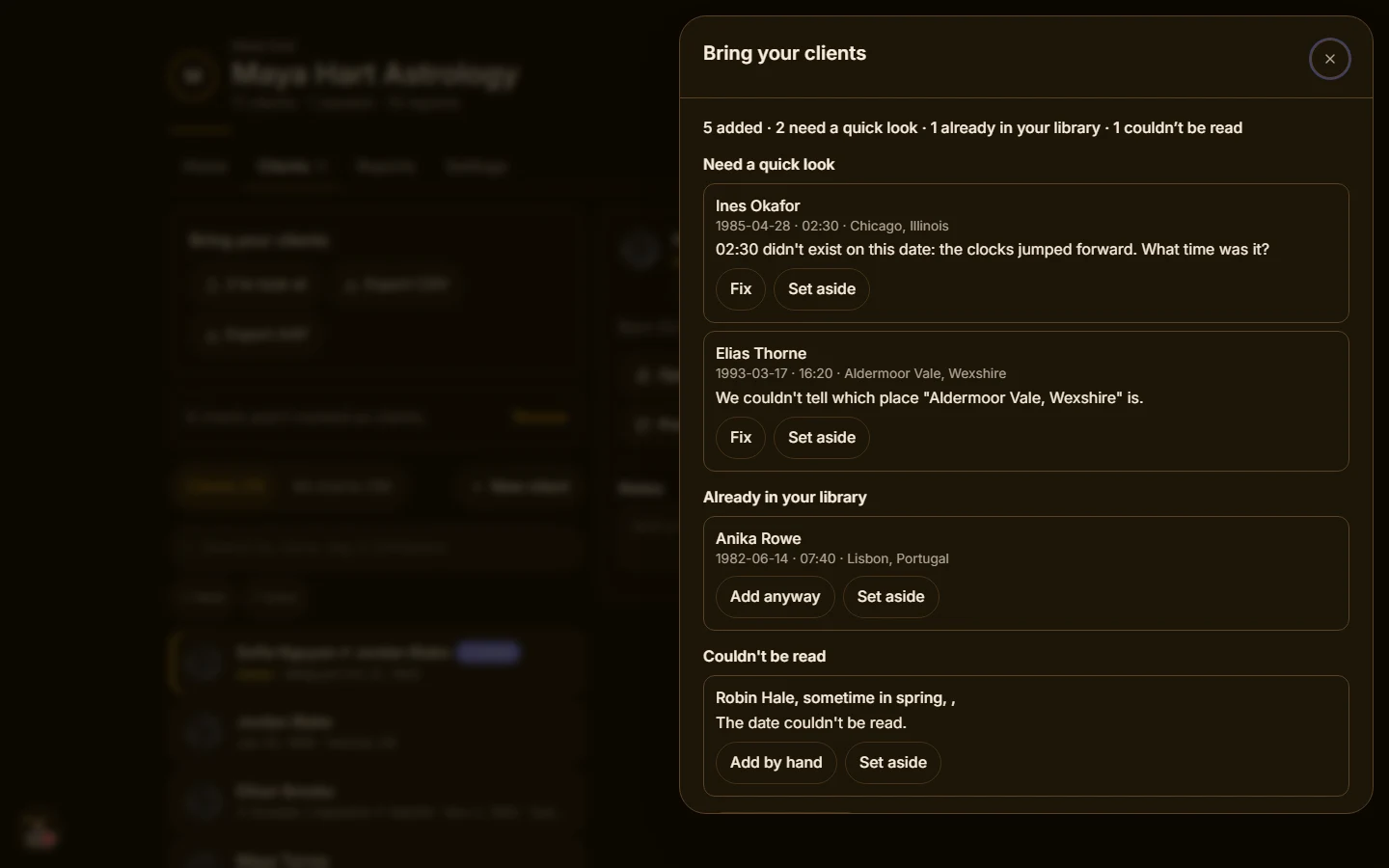
Most charts go straight in. We stop and ask rather than guess when something could change the chart:
- A place we can't identify. Fix it, and pick the right place.
- A time zone we could only estimate. Use it, or fix the chart yourself.
- A time that didn't exist or happened twice, because the clocks changed that night.
- A file that disagrees with the official clock for that date and place.
A chart that looks like one you already have is set aside under Already in your library, where you can add it anyway. A chart with no birth time is added with a noon placeholder and is marked as such. Tell your client before reading the rising sign, houses or angle lines from it.
Your clients' data
- Your file stays on your device. We receive the chart rows, not the file.
- The working copy of those rows is deleted 30 days after an import finishes. Saved charts stay until you delete them.
- Tell your clients before you add their details, as you would when adding a chart by hand. The privacy policy says what we store and why.
Exporting your charts
Open your chart library, or Clients in Practice, and choose Export CSV or Export AAF. You get every birth chart in your library in one file, built on your device. Importing that file back in adds nothing new, because those charts are already there.
Related
Using ELA Map with Clients
How astrologers and Human Design readers use ELA Map in client work: keep client charts, prepare a session, present live, and handle client data with care.
Using Human Design Mode on the Map
Switch the map to Human Design — gate and channel lines, the Expression Field wash, the bodygraph panel, and where synastry, transit, and composite fit.