Presentation Mode
A full-bleed, distraction-free workspace for live readings — drive the map from a radial Command Rose, build guided tours, and annotate as you talk.
Presentation Mode
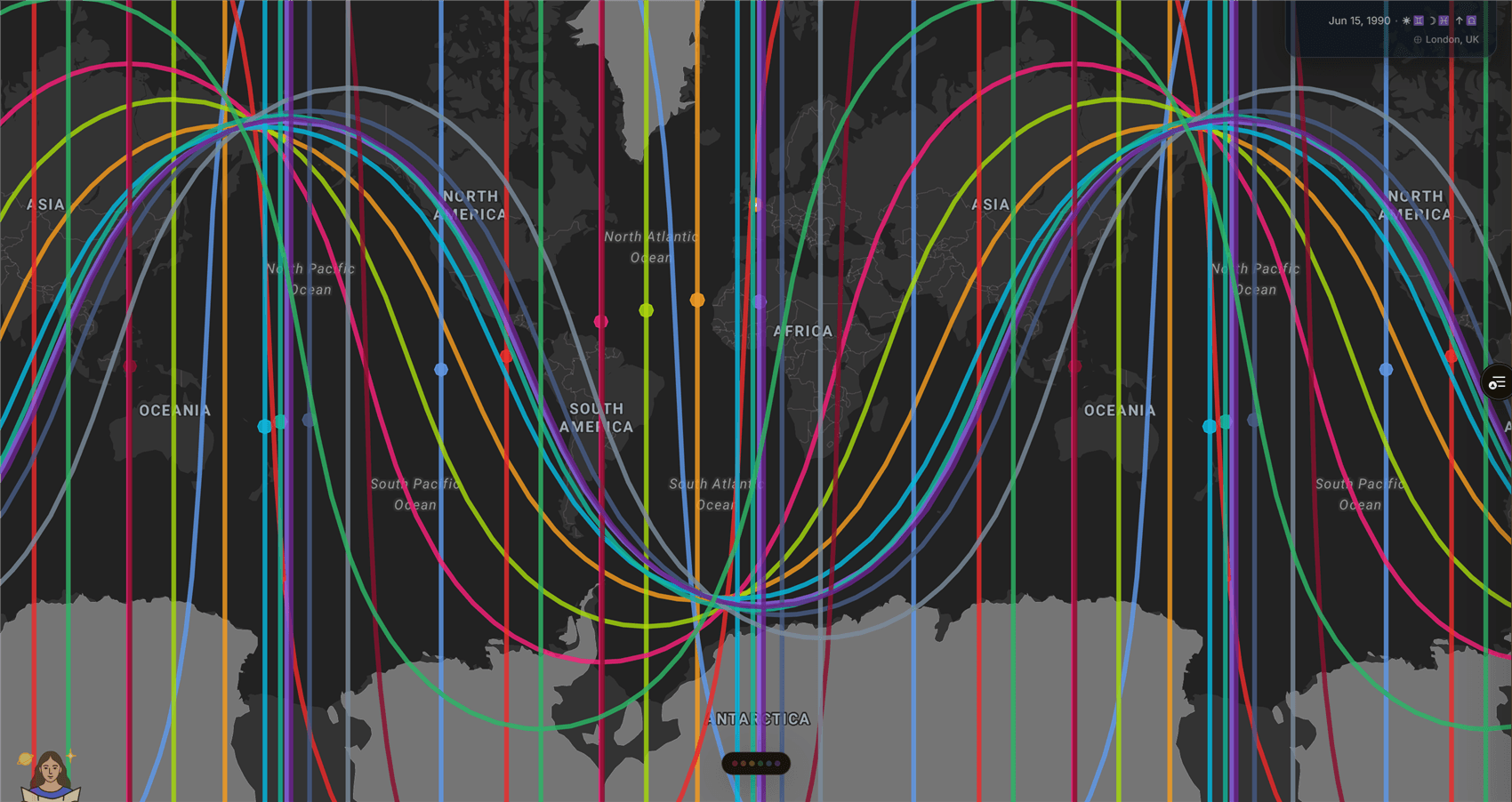
Presentation Mode turns the map into a clean, full-screen stage for live readings. The standard chrome (top bar, side panels, docks) disappears, and every control moves into a single radial menu you summon under your cursor — so you can keep your eyes on the map and your client, not the UI.
[!NOTE] Presentation Mode is a Pro feature and is desktop-only — it needs a pointer and keyboard. On a free plan the entry points surface an upgrade prompt instead.
Entering & leaving
Enter either way:
- Profile menu → Presentation Mode — opens the session with a short cinematic fade.
Ctrl+Shift+P— the same toggle from the keyboard.
Leave with the × in the top-right corner or by pressing Esc. You'll always get a
confirmation first — nothing is cleared by accident.
[!WARNING] Map annotations (pins, highlights, drawings) are session-only and clear on exit. Stops/bookmarks clear too, unless you've saved a Session or turned on Auto-save (see Sessions below). The confirmation dialog tells you exactly what will be kept or cleared.
The Command Rose
Right-click anywhere on the map — or press Space — to open the Command Rose at
your cursor. It has six sectors; hover or click a sector to expand its rail of controls.
Click away or press Esc to dismiss it.
| Sector | What it controls |
|---|---|
| 🔍 Navigate | Fly-to location search, Astro ↔ Human Design mode, and label toggles (lines / edges / map names). |
| 🗂 Sessions | Start, save, load, rename, and delete Sessions; screenshot & share card; Auto-save toggle. |
| ≡ Layers | Line types (planets, asteroids, nodes, aspects), the four angles (AC/MC/DC/IC), and individual bodies. |
| ◎ Overlays | Heatmap theme ("Activation Field") and its display mode, plus zenith/nadir orbs, geodetic grid, night shadow, and line shadows. |
| 📍 Annotate | Pin, Highlight, Draw, and Laser tools, color swatches, undo, export, and clear. |
| ∥ Chart | World transits, life-cycle return charts (Solar, Lunar, Saturn, Chiron…), light/dark, and base map style. |
Guided tours (Stops & playback)
A Stop is a saved camera view — a place, zoom, and angle you want to return to. A sequence of Stops becomes a guided tour you can fly a client through, in order.
- Sessions → New Session. A capture bar appears along the bottom.
- Capture each view. Frame the map, then press
P(or click Capture) to add the current view as the next Stop. Each Stop becomes a chip in the bar — click a chip to revisit it, or ✕ to remove it. - Save the sequence as a named Session. You drop into playback.
- Fly the tour. During playback a breadcrumb shows your position. Use the on-screen
‹›, the progress dots, or the[and]keys to move between Stops with a cinematic flight. Hit Edit to return to the capture bar and revise.
[!TIP] Stops remember the place name (resolved automatically), so the breadcrumb reads "Reykjavík" rather than raw coordinates.
Annotating live
Open Annotate (📍) and pick a tool:
- Pin — click to drop a marker; click the head to add a label and note.
- Highlight — drag to size a translucent circle over a region.
- Draw — freehand a line; click a drawn line to remove it.
- Laser — an ephemeral pointer glow with a fading trail, for gesturing while you talk.
Choose a color from the swatches. Ctrl + Z undoes your last mark. You can Export
GeoJSON or Copy Pin Notes to carry annotations into a follow-up report before you exit.
Sessions & Auto-save
A Session bundles your Stops and annotations under a name, scoped to the active chart. From the Sessions (🗂) sector you can save, load, rename, and delete sessions, and switch between "this chart only" and "all sessions."
Turn on Auto-save to silently preserve your Stops and annotations to a recovery slot each time you exit — the next time you enter, you'll be offered the chance to Resume or start fresh.
Keyboard shortcuts
| Key | Action |
|---|---|
Ctrl + Shift + P | Enter / exit Presentation Mode |
Space | Open the Command Rose (at screen center) |
P | Capture the current view as a Stop (while building a session) |
[ ] | Previous / next Stop (during playback) |
Ctrl + Z | Undo last annotation |
Esc | Close the Command Rose, or exit the session |
[!NOTE] A short interactive tour runs automatically the first time you enter Presentation Mode. You can skip it at any time; it won't show again on that device.
The Observatory (Today)
Your daily page on /today — your lines where you are, the lines moving through them, the live sky, your chart today, and your notes, places and reports.
Using Human Design Mode on the Map
Switch the map to Human Design — gate and channel lines, the Expression Field wash, the bodygraph panel, and where synastry, transit, and composite fit.